Gemini 3 Hands-On: 10 Real Cases That Blew My Mind

Introduction
Over the past few days, my social media feeds have been flooded with Gemini 3.0 case studies. As someone who closely follows AI developments, I spent two full days diving deep into dozens of real-world Gemini 3.0 applications. Honestly, some of these cases made me sit up straight—this isn't just "AI-assisted development" anymore, it's a new paradigm of "AI-driven creation."
Today, I want to share 10 real cases that absolutely amazed me. These aren't demos or proof-of-concepts—they're actual creations made by real users with Gemini 3.0, sometimes step-by-step, sometimes with just a single prompt.
At the end, I'll also share my own Digimon evolution 3D effect case, though it didn't quite work out as planned 😅
1. Water Physics Simulation: A Single Prompt Creates an Interactive 3D Scene
The first case immediately caught my attention. A developer used this simple prompt:
"make a realistic water physics test, full 3d you can interact with it, reflections, waves, click anywhere to drop a lemon into the water"
One-shot generation—Gemini 3.0 output a complete, interactive 3D water physics simulator. You can click anywhere to drop lemons into the water, and the surface produces realistic ripples, reflections, and fluid dynamics.
Someone in the comments mentioned that most LLM-generated fluid simulation code is either syntactically correct but numerically unstable, or gets stuck in local optima. The fact that Gemini 3.0 maintained both numerical stability and physical realism on the first try is technically remarkable.
The developer later added density and size sliders. At low density, the lemons bounce like they're on a trampoline (not exactly physically accurate, but fun). This case made me realize that Gemini 3.0 doesn't just understand code—it truly comprehends physics engines and shader logic.
Source: View full discussion
2. Plants vs. Zombies: A Complete Playable Game from One Prompt
When I saw this case, my first reaction was "no way." But the reality is just that magical—
A single prompt, and Gemini 3.0 generated a fully playable Plants vs. Zombies game. Not a prototype—though the interface is rough, it's actually playable!
I paid close attention to the comments section. The creator mentioned this demonstrates Gemini 3's huge leap in code generation and long-context planning. The game logic, collision detection, animations, and UI were all handled in one go.
Creating a game prototype used to take days or even weeks. Now it might only take a few minutes and one clear description.
Source: View full discussion
3. Chrome Dino Jump Game: A Classic Remake
This case is more down-to-earth. A developer used Gemini 3.0 to recreate Chrome's classic dinosaur jump game that appears when you're offline.
While the game itself isn't complex, the creator made a key point in the comments: Other models can do it too, but they're slow and error-prone; Gemini 3.0 is both fast and accurate.
This observation is important. In practical applications, a model's speed and stability are often more critical than pure capability ceiling. If a task requires repeated debugging and corrections, efficiency plummets.
Source: View full discussion
4. Convolutional Neural Network Interactive Teaching Animation
As an engineer, this case really caught my eye.
The author, Professor Wang Shuyi from Tianjin Normal University, had Gemini 3.0 create an interactive convolutional neural network (CNN) explanation animation. Not a static diagram, but something truly interactive where you can see the data flow.
Someone in the comments said: "Gemini 3 Pro is perfect for teaching animations, this CNN explanation is very intuitive." I completely agree.
Creating such teaching materials used to require either professional animators or complex visualization tools. Now you just need to tell the AI what you want to explain, and it generates an intuitive, interactive demonstration. The impact on education could be revolutionary.
Source: View full discussion
5. Floor Plan to 3D Walkable Space: A Japanese Housing Case
This Japanese developer's case showed me Gemini 3.0's breakthrough in spatial understanding.
He uploaded a floor plan of a Japanese residence and asked Gemini 3.0 to "recreate it in 3D space, walkable like Minecraft."
The results were delightful:
- Not only was the spatial layout accurate
- But it included beds, windows, and outdoor scenery
- It even added external decorative stones, plants, and a parking lot
The developer's strategy is also worth learning from: he first had Gemini understand and describe all details of the floor plan (without rushing to generate code), then requested the 3D scene generation. This "understand first, then create" two-step approach fully leverages Gemini 3.0's multimodal capabilities.
Source: View full discussion
6. High-Fidelity Design Replication: Interactive Effects in One Go
Cali, founder of Zolplay and design expert, shared his experience using Gemini 3.0 to recreate his own design mockups. In his words: "Perfectly recreated my design, and added various interactive effects."
The key to this case is interactive effects. AI generating static interfaces is no longer novel, but generating smooth animations, hover effects, and transitions requires deep understanding of frontend development. Seeing the actual results truly amazed me as a former frontend developer!
Someone in the comments asked: "Is this one prompt?" I suspect it might not be strictly "one sentence," but the fact that Gemini 3.0 can understand design mockups and automatically infer appropriate interaction logic is impressive on its own.
For design-to-code conversion, Gemini 3.0 might truly be a game changer.
Source: View full discussion
7. Scrollytelling Webpage: Apple-Style Complex Animations
This might be one of the most technically challenging cases I've seen.
The author requested a "Scrollytelling" webpage similar to Apple product pages. You know the effect—as you scroll, various elements dynamically appear, transform, and move with precise timeline control.
Even more impressive, Gemini 3.0 added what looks like a complex 3D card animation on its own.
The creator shared detailed prompts, including tech stack requirements (GSAP + ScrollTrigger), interaction logic, visual effects, etc. But even with detailed descriptions, outputting such complex effects in one shot is astounding.
There's an interesting voice in the comments: "These are all existing animation patterns, how hard is it to generate?" But I think being able to understand requirements, choose appropriate solutions, and write bug-free code is itself a high-level capability.
Source: View full discussion
8. DDoS Attack Interactive Explanation: Security Concept Visualization
This case has a clear application scenario: technical education.
The user asked Gemini 3.0: "Help me understand DDoS."
Instead of providing text explanation, Gemini generated an interactive DDoS simulator. You can see the difference between normal traffic and attack traffic, watch servers get overwhelmed, and see how firewalls work.
The comments section was enthusiastic:
- "Turning complex concepts into visualizations, this is insane"
- "Interactive explanations are far more effective than paragraphs of text"
- "Learning with LLMs will become very interesting"
I especially agree with the last point. Traditional technical learning is often tedious, but if AI can generate customized interactive demonstrations for each concept, both learning efficiency and interest will improve dramatically.
Source: View full discussion
9. AI Video Recording Tool: Real-Time Prompting System
This is a case I find very practical.
The developer used Gemini 3.0 to build a video recording tool with a core feature: AI provides real-time prompts for what to say next based on your content. It's like everyone having their own podcast host.
What amazed me most is that the developer said she completed this in Google AI Studio's "Build" function, without touching any code. Core functionality was generated in one shot, using only about 3 rounds of conversation to adjust UI styling.
Source: View full discussion
10. One Prompt Generates Agent Platform: A New Level of Automation
This is the most "sci-fi" one for me.
The creator used this single sentence:
"Help me implement a fully functional video and image Agent platform that supports autonomous completion of image editing and design tasks."
And then... it was generated.
The comments—"This... actually works" and "Yep, amazing"—probably represent most people's feelings: shocked but forced to believe.
Source: View full discussion
My Failed Attempt
My favorite childhood animation was Digimon. I don't know if any of you watched it? Every time the evolution music played, my blood would boil with excitement.
So I tried using Gemini 3 to recreate my precious childhood memories, to see how it would turn out. The result made me laugh and cry at the same time. The entire process is in this video 😂
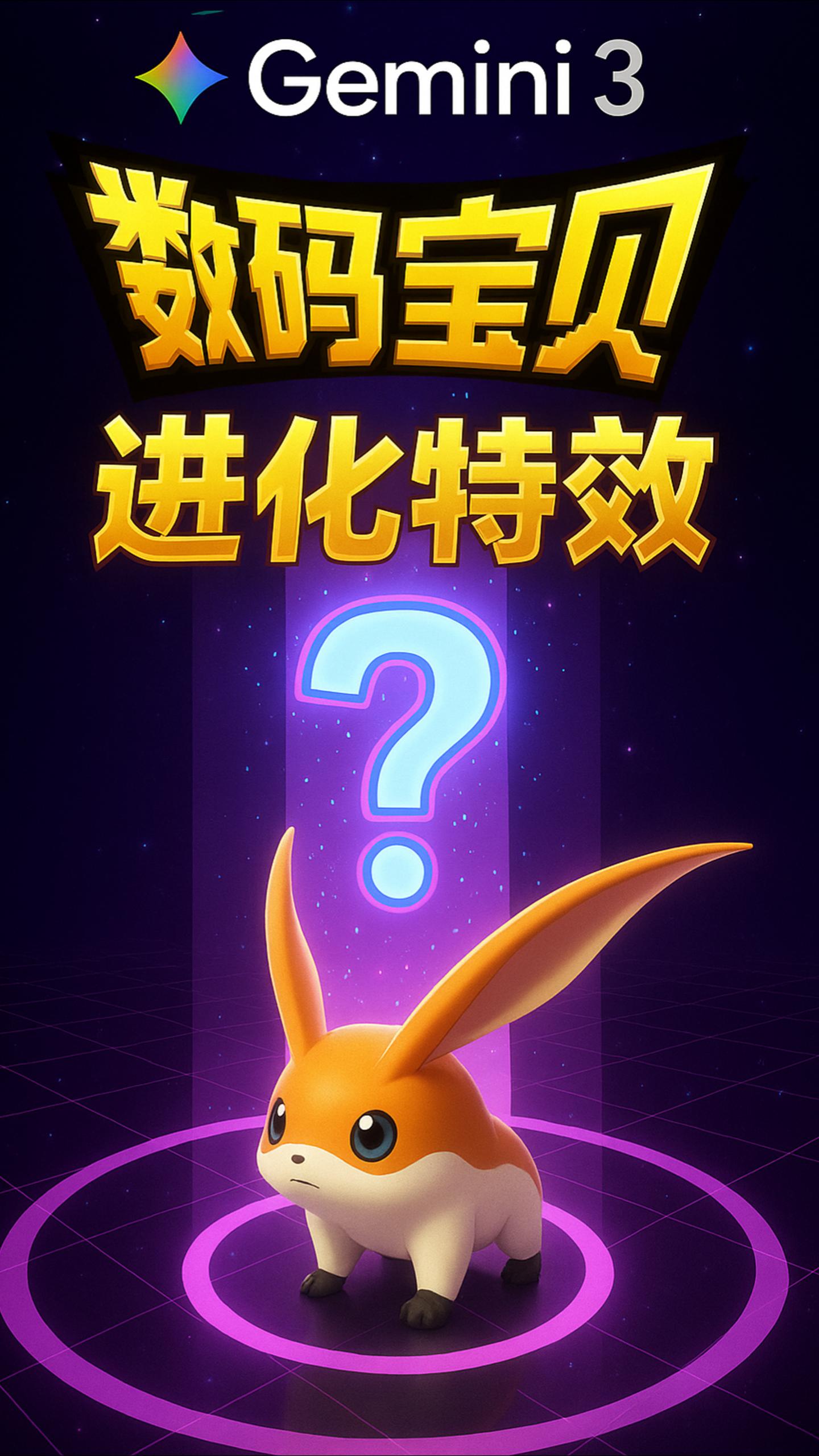
You can also watch it on YouTube.
My Thoughts and Reflections
After reviewing these 10 cases, my biggest takeaway is: We are witnessing the democratization of technology.
In the past, making a game required understanding game engines; creating a 3D demo required knowing Three.js or WebGL; making interactive teaching content required understanding visualization libraries and animation frameworks. These technical barriers kept many people with great ideas on the outside.
Now, with Gemini 3.0, you only need to clearly express what you want. The AI handles the technical implementation.
Of course, this doesn't mean developers will become obsolete. On the contrary, I believe this will make developers' work more valuable—freed from repetitive coding to focus on creativity, architecture, and optimization.
You Can Try It Too: YouMind Now Supports Gemini 3.0 Pro
After talking about all these cases from others, I have some good news for you:
YouMind now supports the Gemini 3.0 Pro model!
If these cases have inspired you to try it yourself, visit youmind.com to start your creative journey. Maybe the next amazing case will come from you.
Looking forward to seeing your work!
Case sources are from public social media shares. Please contact us if there are any copyright concerns.
Have questions about this article?
Ask AI for FreeRelated Posts

How to Start a Gaming YouTube Channel in 2026: Formats, OBS & Growth
Unedited 45-minute "Let's Play Part 1" uploads struggle at zero subscribers because strangers have zero incentive to watch an unknown creator react to a game mega-streamers already streamed weeks earlier. Modern small-channel gaming growth comes from replacing generic playthrough episodes with specific, high-premise concepts, recording clean isolated multi-track OBS audio, and feeding Shorts clips back to full long-form videos. If you want to launch cleanly around one anchor game—without wasted hours losing commentary tracks or hitting surprise yellow limited-ad icons—use the format playbook, OBS pipeline, and desktop YouTube Studio checklist below. Across 2026 gaming creator breakdowns, viewers summarize the core growth filter directly: new gaming channels rarely fail from competition—they fail from blending in without a concrete concept. Before naming your channel or recording match one, commit to one anchor game or tight genre and frame every episode around one of 4 clickable formats: Keep your channel branding memorable without boxing yourself into one disposable tag ("CoolGamerYT123") by testing short naming concepts inside the . One of the most common day-one gaming disasters happens right after recording: beginners separate Game Sound and Microphone audio onto different OBS tracks, then double-click the finished file in Windows Media Player or QuickTime and hear dead silence on one track. Consumer media players only play Track 1 by default—your separate audio tracks are intact, just visible only inside multi-track editors or VLC. Configure these three clean OBS habits before recording a full run: Step 1 — Generate High-Premise Video Angles for One Anchor Game: Open the . Enter one core game alongside specific constraint runs, post-patch meta changes, or low-elo fixes inside What's your channel about?, pick Videos, Shorts, or Both, and click Generate ideas to turn raw gameplay sessions into structured concepts viewers actively search or click. Step 2 — Rewrite Episode Labels Into Sub-60-Character Clickable Titles: Open the , describe your concrete challenge constraint or surprising result in What's your video about?, select Video, expand More options to add your game title inside Main keyword (optional), and click Generate titles. Replace bland filenames ("Elden Ring Stream Highlights #4") with tight sub-60-character hooks—and pair clean, readable focal points using our and . Even skilled gaming videos stall in recommendations or monetization checks when beginners overlook desktop YouTube Studio settings. Under , automated checks inspect every element ("Our policies apply to all portions of your content (video, Short, or live stream, thumbnail, title, description, and tags)."), flagging heavy early profanity or graphic gore with Limited ad earnings or even No ad earnings. Before hitting publish or going live with OBS, run these four checks under Upload → SHOW MORE: Why do unedited Let's Play episodes stop getting views on small gaming channels? Viewers have dozens of established personalities playing the same campaign from start to finish. At 0 subscribers, strangers need a clear upfront premise—a constraint challenge, specific mechanic breakdown, or beginner fix—plus crisp pacing rather than slow 45-minute episode logs. Why can't I hear my mic or Discord track after splitting OBS audio? Default media players (QuickTime, Windows Media Player) only output Audio Track 1. Drop your .mkv or auto-remuxed .mp4 onto the timeline inside DaVinci Resolve, Premiere, or inspect individual tracks inside VLC Media Player—Tracks 2, 3, and 4 are all stored separately inside the container. How do gaming Shorts grow a long-form gaming channel without trapping my audience? Cut the tightest 20–45 second highlight from your full challenge or patch breakdown, upload it as a vertical Short, and link your main long-form episode directly using YouTube Studio's Related video selector once Advanced features are active.

How to Start a YouTube Channel Step by Step for Beginners (2026)
Starting a YouTube channel from scratch does not require an expensive mirrorless camera, paid editing subscriptions, or complex studio lighting. What separates beginners who stay consistent past video ten from channels that stall on upload two is getting four unglamorous foundations right on day one: choosing Personal vs. Brand Account, unlocking YouTube Studio's three verification tiers, prioritizing clear voice audio over cameras, and planning your first 10 cohesive videos before you hit record. Use this step-by-step zero-to-one launch guide to configure your account cleanly, avoid the Brand Account verification lockout, build a complete $0 software starter stack, and publish your first uploads with confidence. Before uploading your first clip, decide which Google account structure fits how you plan to grow: Most beginner upload frustrations—grayed-out custom thumbnails, blocked links in descriptions, or rejected >15-minute uploads—come from skipping YouTube's verification ladder inside YouTube Studio → Settings → Channel → Feature eligibility. Per , every new channel moves through three clear tiers: Note one critical gotcha highlighted directly in : only the Primary channel owner can complete identity/video verification. Brand Account managers or Studio editors clicking verification links will hit an error—make sure you sign in with the primary Google Owner account. Review typically completes within ~24 hours, and staying active on a clean single login avoids losing Advanced access later for insufficient channel history. If your custom thumbnail button still stays disabled after verification, check our . Before filming your very first video, do a quick reality check in an incognito browser tab: look up 5–10 sub-1,000-subscriber channels in your topic area that have already pulled breakout views on specific viewer questions. Pair real topic demand with a sustainable series plan instead of guessing randomly each week: 1. Focus your channel positioning: Open the , enter practical hobbies, software skills, or problems you enjoy explaining inside What do you know or enjoy?, choose Videos, Shorts, or Both, check I don't show my face on camera if recording screen shares or tabletop demos, and click Find channel ideas. 2. Pick a durable name, @handle, and bio: Generate readable naming options in the (keep @handle between 3–30 ASCII characters so external links never percent-encode) and draft a tight opening-line bio in the . 3. Map your first 10 launch episodes upfront: Open the , paste your beginner channel focus into What's your channel about?, choose your Format, and click Generate ideas to build a clear 10-video launch roadmap so Episode 1 feeds naturally into Episodes 2 through 10. Creator equipment threads and high-save starter breakdowns consistently echo the same hard lesson: viewers forgive average 1080p phone video right away, yet click off within five seconds if voice audio echoes or clips. Spend $0 before proving consistency across your first ten uploads: When Episode 1 is exported, click CREATE → Upload videos in the top-right corner of desktop YouTube Studio (supports up to 15 files per batch per ; closing mid-upload automatically saves a Private draft on your Content page). Follow the three core compliance stops: How much money do you need to start a YouTube channel in 2026? $0. A modern smartphone camera, window daylight, quiet soft room recording, and free desktop software (OBS Studio, DaVinci Resolve or CapCut, Audacity, and Photopea) give you everything needed to publish clean 1080p uploads before buying dedicated cameras or lighting. How long does it take to unlock custom thumbnails and clickable description links? Custom thumbnails unlock immediately once you complete free SMS/voice Phone verification under Feature eligibility → Intermediate features. Clickable links in descriptions and Shorts Related Videos require Advanced features, unlocked typically within ~24 hours via Primary Owner ID or video verification (or ~2 months of steady channel history). Should beginners start with Shorts or long-form horizontal videos? Choose based on how you teach best: long-form horizontal uploads (16:9) build deeper searchable libraries and stronger viewer connection per upload, while vertical Shorts (9:16, up to 3 minutes) test topic angles quickly. Using the Both format option when planning lets short clips funnel viewers toward full horizontal guides once Advanced features unlock.

How to Write a YouTube Video Script: 6 Hook Formulas & Free Templates
Most YouTube videos win or lose their session before the viewer reaches 0:30. When an intro drifts through thirty seconds of channel housekeeping, long agendas, or generic filler ("Hey guys, welcome back to the channel, today we're diving into..."), half your audience leaves before your actual point starts—signaling to YouTube's systems that your packaging over-promised. If you want viewers from Home and Search to feel immediately glad they clicked—and keep watching cleanly through the middle of your video—use the three-beat opening structure, 6 proven hook formulas, spoken pacing benchmarks, and 2 copy-paste script templates below. Per , YouTube Studio tracks Key moments for audience retention across your intro, top segments, spikes, and dips, comparing your curve against the typical performance of your latest 10 videos of similar duration. On (which can run up to 3 minutes), YouTube's Audience Retention report also surfaces "How many stayed to watch" to measure how many viewers push past the opening few seconds. Creator retention case studies (r/NewTubers and video-podcast post-mortems tracking swings from 45% to ~70% at the 30-second mark) converge on four rules for closing that early drop: One of the biggest complaints across creator threads (r/NewTubers AI scripting critiques and creator breakdowns on Xiaohongshu about writing scripts that "sound like talking rather than reading an essay") is robotic AI phrasing. Feeding an AI model a bare prompt like "Write a 5-minute video script about microphones" produces formal magazine prose ("In today's fast-paced digital landscape...") that triggers an instant viewer bounce when read aloud. Keep three spoken-word calibration rules in your script doc: Choose the opener that naturally completes your title and thumbnail pair without forcing fake shock: Creators often wonder how clean instructional videos run 8–10 minutes with high retention instead of feeling padded. High-performing scripts chain micro-arcs rather than dumping one giant lecture: Step 1 — Build Beat Structure Without Stiff AI Filler: Open the . Enter your specific test angle, real viewer stakes, and core proof inside What's your video about?, toggle Video or Short, pick your runtime (About 3 min, About 5 min, or About 8 min), check I won't show my face (voiceover only) if scripting faceless narration, expand More options for audience tone if needed, and click Write script (or grab clean structural sections with Copy template). Step 2 — Pressure-Test Your Opening 30 Seconds Before Filming: Paste your draft intro (Option C | ...) or drop a competitor benchmark video (Option A) or channel (Option B) into , click Start creating → (or Try in YouMind), and strip any opening line that stalls past sentence one before moving in front of the mic. Step 3 — Pair Post-Publish Retention Dips With Pre-Publish Audits: Before recording the full video, run your complete draft through to catch sagging middle transitions early—and for Shorts, check the YouTube mobile app's built-in Get feedback workflow (). Once published, open YouTube Studio → Content → [Select Video] → Analytics → Engagement → Key moments for audience retention (or Analytics → Content → Videos → Key moments for audience retention across recent uploads): compare intro dips against your latest 10 similarly timed uploads, and watch for rewind spikes that spotlight high-density segments worth expanding or clipping into Shorts. How long should a YouTube video hook be? Aim to deliver premise confirmation, concrete stakes, and an open curiosity loop inside 15–30 seconds for long-form videos—and hook viewers visually plus verbally within the first 2 seconds on Shorts so you beat early swipe-aways. How many words per minute should a YouTube script target? Most conversational English creators speak comfortably around 130–155 words per minute, putting a lean 5-minute script near 650–775 spoken words. Leave space for visual demos and natural pauses instead of cramming word count. Should I script every single word or use bullet points? Script your first 30 seconds word-for-word plus key transition bridges so every opening beat lands cleanly, then use crisp bullet prompts for hands-on demos and stories where natural spontaneity sounds much better than reading a teleprompter.